

Golf GPS Green-Shape Maps: What Do the Extra Details Add?
An outline, a movable pin and a contour overlay answer different questions. Check the information layer, your courses and any fee before paying for a more detailed display.
A map adds context to a distance, but its symbols still need interpreting. Generic AI illustration; not a photograph of a named model.
Extra green detail is useful when it helps you interpret a target area or answer a specific question. It is less useful when several different features are bundled under the word “maps”, leaving you unsure what appears on the watch and what costs extra.
This guide compares those information layers and checks two exact model examples. The decision routine and fee arithmetic are research-led planning tools, not results from a mapping-accuracy test or a claim of improved scoring.
This is a research-led guide. How we assess golf equipment explains the evidence behind our recommendations.
This guide contains affiliate links. If you buy through them, Taylor’s Trailblazing Golf may earn a commission at no extra cost to you.
Check the base Green View before assuming you need a premium contour layer.
Identify whether the displayed point is your own selection or independently established location information.
Confirm the exact device, course layout and subscription term before valuing the extra detail.
Golf GPS green-shape maps: separate the information layers
A useful buying question is: “What will this screen tell me that my present yardages do not?” An extra picture is valuable when it answers that question clearly. A busier display alone is not a reason to upgrade.
| Information | What it adds to the decision | What it does not establish |
|---|---|---|
| Front, middle and back distances | Three reference points for comparing the distance range. | The full shape of the putting surface or today’s exact flag position. |
| Green outline or Green View | The mapped shape and layout; Shot Scope’s V5 is one example.[2] | Every rise, fall or tier within that outline. |
| A manually moved pin icon | A distance to the point you select; S44 supports tapping or dragging the pin.[1] | Independent verification that your chosen point is the flag’s actual position. |
| Green contours | An additional layer describing elevation or slope within a supported green map.[1] | A guarantee that the course is covered, the feature is included, or its use is permitted in your event. |
Keep a full-hole map separate from these green details too. Seeing a fairway, trees or a bunker does not prove that the same device supplies green contours. Read the named feature rather than inferring it from a colourful product image.
There is also a distinction between green contours and an adjusted approach distance. The S44 manual describes contour shading separately from PlaysLike, which adjusts distance for elevation changes.[1]
For buying purposes, write down the particular layer you want. “More detail” is too vague: a recognisable outline, movable target and contour overlay solve different information problems.
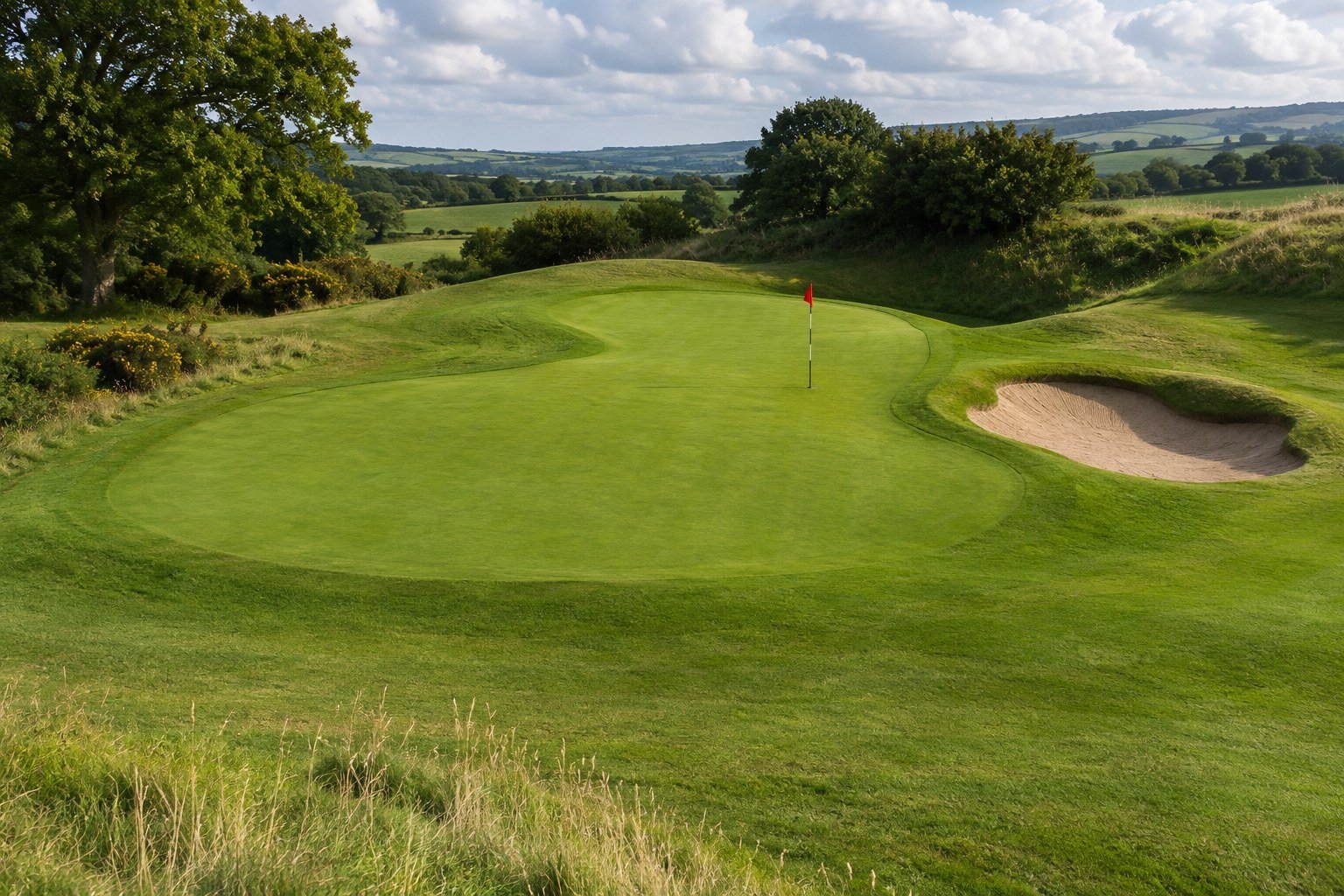
Use a movable pin as a chosen reference, not proof of the flag
On the Approach S44, moving the pin updates the distances and the selected position is retained only for the current round. On the Shot Scope V5, the Green View pin is adjusted with the up and down buttons.[1][2]
That makes the input important. If you place an icon where you think the flag is, the resulting number refers to your selection. The act of moving the icon has not confirmed the real location. Keep “the point I selected” and “the flag I independently located” as separate descriptions.
If the club supplies current hole-location information, check how it can sensibly inform the particular display. If you are placing the point by eye, keep that uncertainty in the decision. Do not turn a precise-looking number into stronger evidence than the input deserves.
Consider this hypothetical example. Basic distances suggest a broad front-to-back range, while the outline shows a narrow rear section. You may decide that the outline is useful even without moving the pin, because it changes which part of the surface you want to consider. Conversely, if the outline does not change your question or choice, you may have little need for a more elaborate map.
The added value is information you can interpret, not a promise that the device will select a target for you. For the broader difference between mapped references and a laser measurement, use the existing GPS watch versus laser rangefinder guide.

Check the course, device and plan before paying for detail
Make the check for the courses you actually play, including the exact layout at a club with several courses. A large worldwide course total does not answer whether one particular extra layer exists on your usual green.
Garmin’s course finder marks supported listings with a “Contours” label. Search the exact venue and layout, then check that marker rather than treating an ordinary course listing as confirmation of contour coverage.[5]
- Identify the question. Write “green outline”, “manual pin”, “full-hole layout” or “contours”, rather than simply “maps”.
- Confirm the exact device. Match the model and current instructions, not a feature list for another watch in the same brand.
- Check the particular course. Confirm the relevant layout and requested map layer.
- Check what is included. Separate hardware features from optional account, app or membership features.
- Prepare the data. Follow the model’s update and download instructions before the round, and confirm the expected view appears.
For the S44, Garmin’s membership table puts Premium CourseView maps, touch targeting and green contours in the paid tier. Its ordinary Green View is a separate feature described in the watch manual.[4][1]
Do not substitute a phone demonstration for confirmation on the device you intend to use. Ask to see the required feature on that exact model and course, or obtain a clear answer from the maker. If the course or compatibility answer remains unresolved, leave the extra feature out of your buying calculation.
Keep a dated note or screenshot of the information you checked. That is a useful record of the purchase decision, not a promise that maps, plans or coverage will remain unchanged indefinitely.

Use the detail to answer one question, then return to play
Before each map check, decide what you are trying to learn. You may want to see where the green narrows, compare a selected point with the front edge, or confirm which part of the layout you are viewing. Opening every available layer is not the objective.
- Check the course, hole and units before interpreting a number.
- Identify the map’s orientation and which reference point the distance describes.
- Keep a manually selected point distinct from a confirmed current hole location.
- Compare the display with the visible course and any current information supplied by the club.
- Make the decision and put the device away; learn unfamiliar controls before the round.
For example, suppose you only need to know whether the green extends farther on one side. An outline may answer that without a paid contour overlay. If your question concerns a change in level within the green, the outline alone does not supply that information. These are different requirements, not stages in a compulsory upgrade path.
Digital maps used to read a stroke from the putting green have scale and size limits. Enlarging them beyond those limits or generating a recommended line from the ball’s position is prohibited.[7]
Before organised play, check the event’s instructions and ask the Committee if the intended use is unclear. Do not treat a feature being visible on a device as permission to use it. This buying guide does not determine the ruling for an individual competition.
If the displayed shape or hole appears wrong, stop building a decision on it. Confirm the selected course and hole, and report a suspected mapping issue through the maker’s route. A more detailed image is not a reason to overlook a mismatch with the place in front of you.

Compare included maps with the fee for the extra layer
Use the feature you need as the unit of comparison. Shot Scope’s V5 specification lists its golf app and statistics platform without a subscription fee. Keep that statement attached to the V5 offering; it does not establish that every separate app purchase from the brand is free.[3]
| Example | Relevant map function | Fee question |
|---|---|---|
| Shot Scope V5 | Green shape and button-adjusted pin position.[2] | The published V5 offering has no subscription requirement.[3] |
| Garmin Approach S44, base features | Green View with manual pin positioning.[1] | Do not confuse this view with the separately listed premium map features. |
| S44 with Garmin Golf membership | Premium CourseView, touch targeting and contours, subject to feature/course availability.[4] | Recurring membership is an additional cost. |
Checked on 24 November 2026, Garmin Golf’s UK Apple App Store listing shows £8.99 for a monthly membership and £89.99 for a yearly membership. These are that UK iOS listing’s prices, not a quote for every purchase channel; confirm the amount shown in your own checkout.[6]
At those prices, six monthly payments total £53.94 and twelve total £107.88. A £89.99 annual payment is £17.89 less than twelve monthly payments, but costs more than six. This is simple fee arithmetic with unchanged prices, excluding the device and any promotion—not a forecast of how often you will use the feature.
Garmin’s plans renew for the selected term unless changed or cancelled before the next renewal date.[4]
Choose the paid term only after confirming the feature, course and intended use. A lower annual equivalent is not a saving if you only need a short period or the desired course lacks the extra data. If basic shape and target placement answer your question, keep those in the comparison without adding a contour subscription by default.
Back to top ↑Buy the missing information, not the busiest screen
For a button-operated example with green shape and manual pin placement, check the black Shot Scope V5 at Clubhouse Golf. The verified listing identifies SS-WAT-V5-BLK. Consider the rest of the watch’s features separately from the mapping question; do not buy functions you have no intention of using.[8]
For an example separating base Green View from optional premium detail, check the Garmin Approach S44 in black/silver at Clubhouse Golf. The verified article is 010-03009-00. Check the relevant membership and course coverage before including premium maps in the value of that purchase.[9]
Bring four questions to the final comparison: Can I read the view comfortably? Does it contain the layer I need? Is that layer available on my courses? What must I pay or prepare to use it?
Keep your current device if its yardages already answer your normal questions. Choose a shape view when seeing the outline changes your decision. Consider contours only when that different information is available, usable and worth the additional commitment for your own golf. The most detailed display is useful only when its detail has a job.
Back to top ↑Frequently asked questions
Is a course appearing in the map list enough to confirm green contours?
No. Treat ordinary course coverage and contour coverage as separate checks. Use the maker’s feature-specific listing for the exact layout, and confirm support on your particular device and plan. Leave contours out of the purchase calculation until that answer is clear.
Can I judge the map from a product photograph?
Use it to understand the presentation, then check the exact feature list. A photograph may show a premium layer or a different course from yours. Ask whether the pictured view is available on the device and plan you intend to buy.
Sources and checks
Sources consulted on 24 November 2026. Manufacturer and retailer descriptions are attributed claims; illustrations do not show tested products. Recheck current features, compatibility, charges and operating instructions before use or purchase.
- Garmin — Approach S44 owner’s manual
- Shot Scope — Using Green View on V5
- Shot Scope — V5 specification sheet
- Garmin — Golf membership feature comparison and renewal terms (English)
- Garmin — Golf course and contour availability finder
- Apple App Store UK — Garmin Golf, published by Garmin
- The R&A — Rule 4 clarifications: green-reading materials
- Clubhouse Golf — Shot Scope V5, Black
- Clubhouse Golf — Garmin Approach S44, Black/Silver
Illustrations in this article were created for Taylor’s Trailblazing Golf. Third-party photographs, where used, are credited beside the image or in the source list.